
There’s nothing more frustrating than settling in for a show and finding your IPTV not working. One minute everything’s fine; the next you’re staring at a frozen screen or an error message. The good news? Most IPTV problems have simple causes — a dropped connection, an expired plan, a busy server — and you can fix the vast majority yourself in a few minutes, no technical skills required.
This guide is the complete 2026 troubleshooting playbook for IPTV not working. First, we’ll start with the fastest checks. Then we’ll move through device-specific fixes for Firestick, Android, and smart TVs, and finally show you how to tell when the problem is your provider’s, not yours. Work through it in order and you’ll be back to watching quickly.
Quick Reference: Common IPTV Problems and Solutions
Short on time? This table maps the most common symptoms to their usual fix. The full steps are further down.
| Problem | Most Likely Cause | Quick Solution |
|---|---|---|
| App won’t open / crashes | Full storage or corrupt cache | Clear cache, free up space, reinstall |
| Playlist not loading | Wrong or expired M3U URL | Re-enter URL; confirm subscription |
| Buffering | Weak/congested connection | Use ethernet or 5GHz; clear cache |
| Connection failed | No internet or server down | Test internet; retry later |
| Black screen | App or codec glitch | Restart app; switch player |
| Login failed | Wrong details or auth error | Re-check credentials; check connections |
| Only some channels fail | Provider server overloaded | Contact provider; no device fix |
Why Is IPTV Not Working?
Before changing settings, it helps to know what actually causes IPTV not working. In fact, nearly every case traces back to one of these six common causes:
- Internet connection — slow, unstable, or dropped Wi-Fi is the number-one culprit.
- Expired subscription — a lapsed plan stops everything, often without warning.
- Server downtime — the provider’s servers are offline or overloaded at peak times.
- Incorrect playlist — a mistyped or expired M3U URL won’t load your channels.
- Application issues — a full cache, outdated app, or low device memory causes crashes.
- Device compatibility — the app isn’t supported on that device, or needs an update.
Here’s the single most useful test in this whole guide: if everything struggles, the cause is your internet or device; if only some channels fail while other apps work fine, the cause is your provider. Keep that in mind throughout.
Your 9-Step IPTV Troubleshooting Checklist
Next, run through this IPTV not working checklist in order. Importantly, stop the moment your stream comes back so you don’t change settings unnecessarily.
- ✅ Restart your router and modem (unplug 30 seconds).
- ✅ Restart your streaming device.
- ✅ Restart or force-close the IPTV app.
- ✅ Confirm your subscription is active and paid.
- ✅ Test your internet on another app (YouTube, Netflix).
- ✅ Switch to 5GHz Wi-Fi or wired ethernet.
- ✅ Clear the IPTV app’s cache.
- ✅ Re-enter your M3U URL or Xtream Codes details.
- ✅ Update the app and your device’s software.
Check Your Internet Connection
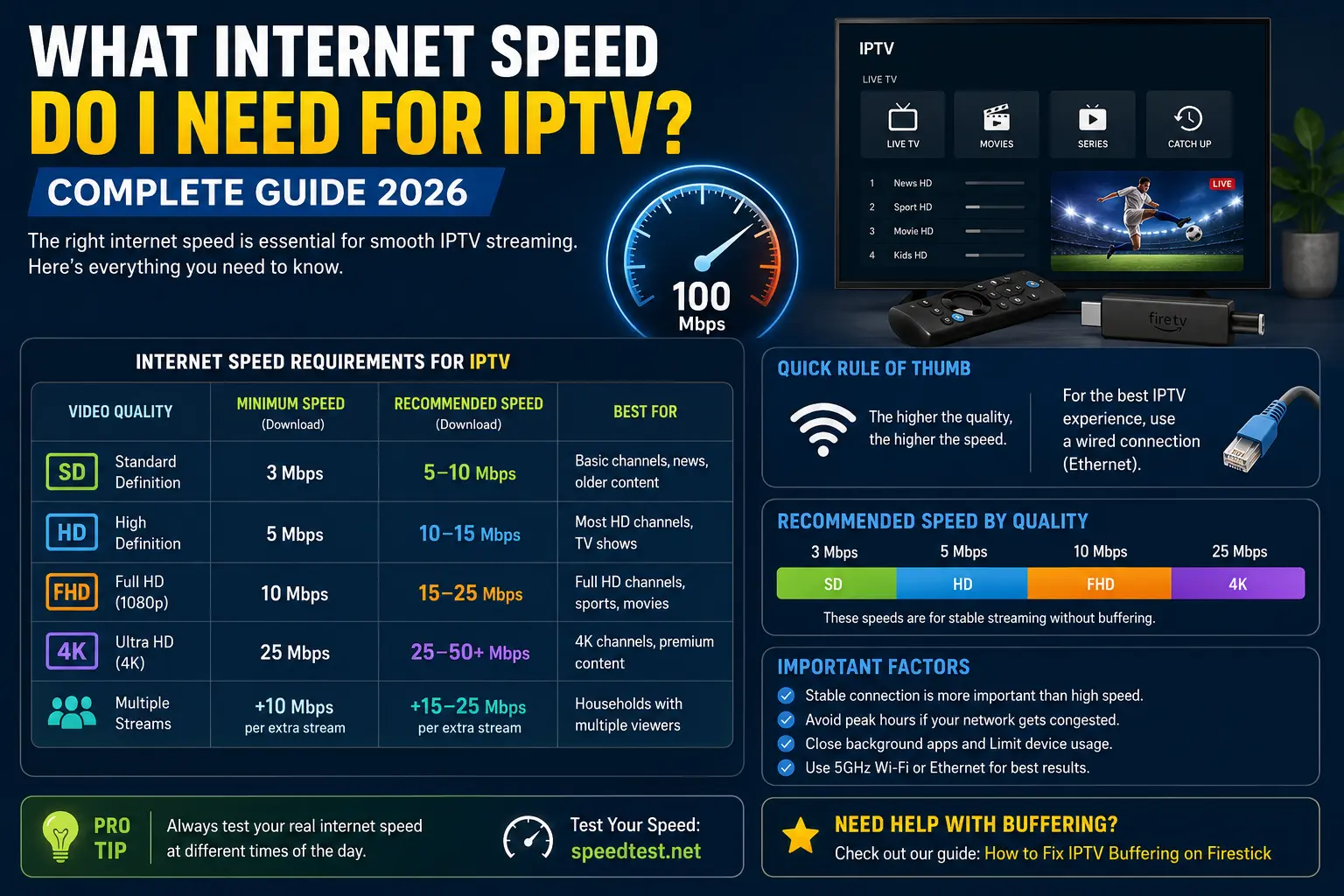
Since a weak connection causes most problems, start here. Run a speed test on the device you stream on — not just at the router — and ideally during peak evening hours, when congestion bites hardest.
Here are realistic speeds per stream:
| Quality | Resolution | Recommended Speed |
|---|---|---|
| SD | 480p | 5–8 Mbps |
| HD | 720p | 10–12 Mbps |
| Full HD | 1080p | 15–20 Mbps |
| 4K | 2160p | 25 Mbps or more |
Remember, stability beats raw speed. A steady connection at a lower number streams better than a fast one that keeps dropping. For the full breakdown, see our guide on what internet speed you need for IPTV.
IPTV Playlist Not Loading
An empty channel list is one of the most common reasons for IPTV not working. When your playlist won’t load, it’s almost always one of these:
- Invalid M3U URL — a single typo, a missing
http://, or a stray space breaks the link. - Expired playlist — the URL or subscription tied to it has lapsed.
- Playlist format issues — the file isn’t a valid M3U/M3U8, or your app can’t read it.
- Server errors — the provider’s server is temporarily down.
To fix it, re-paste the URL exactly as supplied, refresh or re-add the playlist, and confirm your account is active. If a raw M3U keeps failing, try Xtream Codes login instead. You can test your setup against a known-good list from our public IPTV playlist resource.
IPTV Buffering Problems
Buffering — that endless spinning wheel — is another frequent cause of IPTV not working, and it usually points to your network or the provider’s load. Here’s what causes it and how to respond.
- Slow Wi-Fi: move closer to the router or switch to the 5GHz band.
- Network congestion: pause downloads and other streams during peak hours.
- DNS issues: set a fast public DNS such as Google (8.8.8.8) or Cloudflare (1.1.1.1).
- VPN impact: a VPN can help if your ISP throttles streams, but a distant server adds lag — pick one nearby.
- Cache problems: clear the app cache to free up memory.
Practical steps: restart your router, switch to ethernet, clear the cache, then test a channel. If buffering hits every channel, it’s your network; if it hits only some, it’s the provider. Our complete guide on how to fix IPTV buffering covers every fix in detail.
💡 Pro Tip: Before you change a single setting, open YouTube or Netflix on the same device. If they stream perfectly but your IPTV doesn’t, the problem is your provider — not your internet, device, or app. This 20-second test saves hours of pointless tinkering.
IPTV Not Working on Android
Android phones, tablets, and TV boxes are popular for IPTV, but they have their own quirks. If you find IPTV not working on Android, the cause is usually storage, cache, or an outdated app.
Common Problems
The usual Android issues are the app force-closing, channels not loading after an update, playback errors on certain streams, and the app running out of memory on cheaper devices.
Step-by-Step Fixes
- Force-stop the app: Settings → Apps → [your IPTV app] → Force Stop.
- Clear the cache from the same screen (this won’t delete your login).
- Update the app from the Google Play Store.
- Free up storage by removing unused apps.
- Restart the device, then relaunch the app.
For a full walkthrough, see our IPTV Android guide.
IPTV Not Working on Firestick
The Amazon Fire TV Stick is the most common IPTV device — and its limited storage makes it prone to a few specific issues.
- App crashes: clear the cache and free up storage; the Firestick has very little to spare.
- Black screen: restart the app, then try a different player if it persists.
- Playback errors: switch between hardware and software decoding in your app’s settings.
- Updating apps: outdated apps cause instability — check for updates regularly.
- Clearing cache: go to Settings → Applications → Manage Installed Applications → [app] → Clear Cache.
Amazon publishes its own device guidance too; their official Fire TV support pages cover restarts and updates. For IPTV-specific setup, see our IPTV for Firestick guide.
IPTV Not Working on Smart TV
Smart TVs run different operating systems, so the fix for IPTV not working depends on the brand. Below, we cover the three most common platforms.
- Samsung TV (Tizen): close and reopen the app, check for app and firmware updates in the Smart Hub, and restart the TV by unplugging it for a minute.
- LG webOS: reinstall the IPTV app from the LG Content Store, clear app data in settings, and update webOS.
- Android TV: clear the app cache under Settings → Apps, update via Google Play, and free up storage — the same approach as Android boxes.
If your TV’s app store doesn’t offer a good IPTV player, an external streaming stick often gives a smoother experience than the TV’s built-in apps.
IPTV Login Problems
Login failures are a common reason for IPTV not working, stopping you before you even start. Typically, they come down to three things:
- Xtream Codes errors: the server URL, port, or details are wrong — copy them exactly as supplied.
- Username/password mistakes: watch for capital letters, the number 0 versus the letter O, and trailing spaces.
- Authentication failures: your subscription may have expired, or you’ve exceeded your allowed connections — close the app on other devices.
If credentials are definitely correct but login still fails, the provider’s authentication server may be down. Wait and retry, or contact support.
Best IPTV Apps for Stable Performance
The right app makes a real difference to stability and can prevent IPTV not working altogether. Without ranking them, these are the players most widely used for reliable IPTV in 2026:
- TiviMate — polished interface and excellent EPG; Android and Firestick.
- IPTV Smarters Pro — widely compatible and beginner-friendly.
- XCIPTV — feature-rich with Xtream Codes support.
- Smart IPTV — a long-standing choice on Samsung and LG smart TVs.
Choose one that’s supported on your device and stick with it. Our roundup of the best IPTV app for 2026 compares them in depth.
Common Mistakes to Avoid
Finally, sidestep these common mistakes and you’ll fix IPTV not working faster — and avoid creating new problems along the way.
- Blaming your device when it’s the provider. Always run the YouTube test first.
- Using 2.4GHz Wi-Fi when a faster, less crowded 5GHz band is available.
- Letting device storage fill up, leaving no room for the buffer.
- Mistyping the M3U URL — one wrong character stops it loading.
- Expecting a VPN to fix everything — it only helps with ISP throttling.
- Ignoring app updates, which quietly fix bugs and crashes.
When Should You Contact Your IPTV Provider?
Knowing whether a problem is yours or your provider’s saves a lot of time. Often, IPTV not working is server-side. Therefore, contact your provider when:
- Only some channels fail while your internet and other apps work perfectly.
- Channels buffer at peak hours but are fine in the morning.
- You get a “max connections” message you can’t explain.
- Your login fails despite correct credentials.
- The whole service is down for everyone, not just you.
These are server-side issues no amount of device tweaking will fix. If your provider is frequently down, that’s a sign to consider a more reliable one — our explainer on what an IPTV service is covers what to expect from a good provider.
Frequently Asked Questions
Why is my IPTV not working all of a sudden?
IPTV usually stops working suddenly because of an internet drop, an expired subscription, provider server downtime, or an app that needs restarting. Start by checking your internet and confirming your subscription is active, then restart your device and app before trying anything more advanced.
Why is my IPTV playlist not loading?
A playlist fails to load when the M3U URL is mistyped or expired, the subscription has lapsed, the playlist format is wrong, or the provider’s server is down. Re-enter the URL carefully, refresh the playlist, and confirm your account is active with your provider.
How do I fix IPTV buffering?
Fix IPTV buffering by restarting your router, switching to wired ethernet or 5GHz Wi-Fi, closing background apps, and clearing your app cache. If only some channels buffer while others play fine, the issue is the provider’s server, not your connection.
Why is IPTV not working on my Firestick?
IPTV problems on a Firestick are usually caused by a full storage, a corrupted app cache, an outdated app, or a weak connection. Clear the cache, free up storage, update the app, and restart the Firestick to resolve most issues.
Is the problem my device or my IPTV provider?
If every channel and app struggles, the problem is your device or internet. If only certain IPTV channels fail while mainstream apps like YouTube work perfectly, the problem is on the provider’s servers, and no fix on your end will solve it.
Does a VPN fix IPTV not working?
A VPN helps only when your internet provider is throttling streaming traffic, since it hides that traffic. It will not fix slow internet, an expired subscription, or an overloaded server, and a VPN does not make an unlicensed service legal.
Conclusion
When you find your IPTV not working, the fix is almost always closer than it seems. Start simple: restart your router, device, and app; confirm your subscription; and test your internet. Then work through the device-specific steps for your Firestick, Android, or smart TV, and clear those caches.
Above all, use the one test that cuts your troubleshooting time in half — check whether mainstream apps work. If they do and only IPTV struggles, the problem is your provider, not you. Follow this systematic approach and you’ll resolve nearly every issue without stress.
Still stuck? Message us on WhatsApp and we’ll help you pin down the cause.