
Few things kill a good evening faster than a match or a movie that freezes every thirty seconds. If your stream keeps stalling, the good news is that most Firestick buffering is fixable in a few minutes — and you rarely need to throw the device away or switch providers to do it.
This guide walks through every realistic cause, from the obvious (slow Wi-Fi) to the easy-to-miss (a Firestick quietly running out of memory), and gives you a clear, ordered fix for each one. We’ve arranged it the way an experienced installer would actually troubleshoot it: cheapest and fastest fixes first, deeper fixes later.
Quick answer: IPTV buffers on a Firestick mainly because of a weak or congested internet connection, low free storage, a bloated app cache, ISP throttling, or an overloaded provider server. Restart your router and Firestick, switch to 5GHz Wi-Fi or a wired ethernet adapter, clear the app cache, and free up storage — that sequence resolves the large majority of cases.
In short, work through the steps in order and stop as soon as your stream is smooth. Most cases of IPTV buffering on Firestick clear up within the first few fixes.
Table of Contents
- Why Does IPTV Buffer on Firestick?
- The 60-Second Quick Fix for IPTV Buffering on Firestick
- Fix 1: Improve Your Internet Connection
- Fix 2: Free Up Firestick Storage and Clear Cache
- Fix 3: Adjust Your IPTV App Settings
- Fix 4: Stop ISP Throttling With a VPN
- Fix 5: Cool Down an Overheating Firestick
- Fix 6: Update Fire OS and Your IPTV App
- Fix 7: Rule Out Your Provider
- Advanced Fixes That Genuinely Work
- Common Mistakes to Avoid
- Frequently Asked Questions
- Conclusion
Why Does IPTV Buffer on Firestick?
In short, IPTV buffering on Firestick happens when video data arrives slower than the Firestick plays it. Before you start changing settings, it helps to understand what buffering actually is. When you watch IPTV, your app downloads a few seconds of video ahead of what you’re watching and stores it in a small memory “buffer.” As long as the buffer fills faster than you empty it, playback stays smooth. (If you’re new to how IPTV streaming delivers channels over the internet, that background helps here.) Buffering happens when the buffer empties faster than it can refill — so the picture pauses while the app waits for more data.
In other words, that single idea explains every cause on this list. Whenever something slows the data stream — weak Wi-Fi, ISP throttling, low storage, or an overloaded IPTV server — or stops the Firestick from decoding it fast enough, you get the dreaded spinning wheel and constant buffering.
On an Amazon Fire TV Stick specifically, the usual suspects are:
- Slow or unstable internet — the most common cause by a wide margin.
- Wi-Fi interference or distance from the router, especially on the crowded 2.4GHz band.
- Low free storage, which leaves no room for the buffer and slows the whole device.
- A bloated app cache that’s grown corrupt over weeks of use.
- ISP throttling, where your internet provider deliberately slows streaming traffic.
- An overloaded provider server, which affects only some channels.
- Overheating, which makes older sticks throttle their own performance.
Here’s the most useful diagnostic shortcut: if everything struggles — YouTube, Netflix, and your IPTV app alike — the problem is your internet or your Firestick. If only certain IPTV channels buffer while everything else is flawless, the problem is almost certainly your provider’s servers, and no setting on your end will fix it.
So keep that simple test in mind as you work through the fixes for IPTV buffering on Firestick below.
The 60-Second Quick Fix for IPTV Buffering on Firestick
If you only have a minute, do these four things in order. Together, they stop IPTV buffering on Firestick in a surprising number of cases on their own.
- Restart your router and modem. Unplug both for 30 seconds, plug the modem back first, then the router. This clears network congestion and is the most underrated fix on this entire page.
- Restart the Firestick. Hold Select + Play/Pause for about five seconds, or go to Settings → My Fire TV → Restart. This clears the device’s working memory.
- Switch to 5GHz Wi-Fi if your router supports it (more on this below).
- Clear your IPTV app’s cache (the exact path is in Fix 2).
Test a channel. If it’s smooth, you’re done. If not, keep reading — the next sections handle the stubborn cases. For app-specific tips, see our guide to the best IPTV apps without buffering.
Fix 1: Improve Your Internet Connection to Reduce IPTV Buffering on Firestick
Because slow or unstable internet causes most IPTV buffering on Firestick, this is where you should spend the most effort first.
Check Your Actual Speed
Don’t guess — measure. Install a speed test app on the Firestick, or run a quick test with a trusted tool like Speedtest by Ookla on your phone while standing next to the TV. As a working guide:
- Standard definition: 5–8 Mbps
- HD (720p/1080p): 15–25 Mbps
- 4K / UHD: 25 Mbps or more, per stream
If two TVs are streaming at once, double the requirement. For a deeper breakdown, see our guide on the internet speed you need for IPTV.
One important nuance: stability matters more than raw speed. A rock-solid 30 Mbps connection beats a 200 Mbps connection that drops out every few minutes. Buffering is often a stability problem disguised as a speed problem.
Use 5GHz Wi-Fi Instead of 2.4GHz
Most modern routers broadcast two networks — one on the 2.4GHz band and one on 5GHz. The 2.4GHz band travels further but is slower and crowded with interference from neighbours, microwaves, and baby monitors. The 5GHz band is faster and far cleaner, with much more headroom for HD and 4K.
On your Firestick, go to Settings → Network, and connect to the network name ending in “5G” or “5GHz” if you see one. As long as the stick is reasonably close to the router, this single change fixes a lot of evening buffering.
Move the Firestick Closer to the Router
Walls, floors, and large furniture all weaken Wi-Fi. If your Firestick is in a back bedroom two floors from the router, even a fast connection will struggle. Where you can’t move the router, a mesh Wi-Fi system or a Wi-Fi extender placed halfway between the two makes a real difference.
Go Wired With an Ethernet Adapter
This is the most reliable fix of all. An official Amazon Ethernet Adapter (or a compatible third-party one) plugs into the Firestick’s micro-USB power port and gives it a wired connection that ignores Wi-Fi interference entirely.
In our experience, switching a problem Firestick from Wi-Fi to ethernet eliminates buffering more often than any other single change — particularly for 4K channels and homes with busy networks. If you’ve tried everything else and still struggle, buy the adapter.
Fix 2: Free Up Firestick Storage and Clear Cache
A Firestick has very little storage — typically 8GB, with only a few gigabytes actually free. When that space fills up, the device slows down and the buffer has nowhere to live. As a result, low storage is one of the most overlooked causes of IPTV buffering on Firestick.
Clear Your IPTV App’s Cache
Over time, your IPTV app builds up temporary files that can grow corrupt and cause stuttering. Clearing them is safe — it does not delete your login or playlist.
- Go to Settings → Applications → Manage Installed Applications.
- Select your IPTV app (for example, TiviMate or IPTV Smarters).
- Choose Clear Cache.
Do this every couple of weeks as routine maintenance.
Uninstall Apps You Don’t Use
Every game and app you’ve installed eats into that tiny storage pool. Go to the same Manage Installed Applications menu and uninstall anything you no longer open. Aim to keep at least 1–2GB free at all times.
Turn Off Background Data Collection
The Firestick quietly collects usage data in the background, which can nibble at performance. Go to Settings → Preferences → Privacy Settings and disable “Collect App Usage Data,” then go to Settings → Applications and turn off “Collect App Usage Data” there too. It won’t transform a slow stick, but every little helps on such limited hardware.
Fix 3: Adjust Your IPTV App Settings
Most quality IPTV players include settings that directly affect IPTV buffering on Firestick. The exact wording varies by app, but the core concepts stay the same.
Increase the Buffer Size
Look for a setting called “buffer size,” “decoder buffer,” or similar. Increasing it tells the app to download more video ahead of time before playing. A larger buffer adds a second or two of delay when you change channels, but it smooths out short connection dips beautifully. This is one of the most effective in-app fixes.
Switch the Decoder (Hardware vs Software)
IPTV apps let you choose between hardware decoding and software decoding.
- Hardware decoding uses the Firestick’s chip and is more efficient — try this first.
- Software decoding uses generic processing and can help with awkward stream formats, but uses more resources.
If one causes buffering or a black screen, switch to the other and test again. There’s no universal “right” answer; it depends on the stream and your specific stick.
Try a Different Player
If buffering only happens in one app, the app itself may be the issue. Installing an external player such as VLC or MX Player and pointing your IPTV app to it can resolve playback problems that the built-in player can’t. Our roundup of the best IPTV players for Firestick covers which apps handle buffering best.
Fix 4: Stop ISP Throttling With a VPN
Some internet providers deliberately slow down streaming traffic once they detect it — a practice called throttling. If your speed test looks fine but IPTV still buffers, especially during peak hours — a common hidden cause of IPTV buffering on Firestick, throttling is a real possibility.
A VPN (Virtual Private Network) encrypts your traffic so your ISP can’t see what type it is, which means it can’t single it out for throttling. When throttling is the cause, a reputable VPN can genuinely smooth playback.
Two honest caveats, though:
- A VPN only helps if throttling is the actual cause. If your problem is slow internet, low memory, or an overloaded provider, a VPN can make things slightly worse by adding a little overhead. Test before and after.
- A VPN does not make an unlicensed service legal. It’s a privacy tool, not a legal workaround. Always choose a properly licensed provider first.
For setup steps and how to pick one, see our IPTV and VPN guide. Choose a paid, well-reviewed VPN with servers near you; free VPNs are usually too slow to help and come with their own risks.
Fix 5: Cool Down an Overheating Firestick
This one surprises people. The Fire TV Stick is a small device with little ventilation, and when it gets hot — particularly older models tucked behind a TV in a warm cabinet — it throttles its own performance, which is a sneaky source of IPTV buffering on Firestick.
If your stick is hot to the touch:
- Use the short HDMI extender cable Amazon includes, so the stick hangs away from the hot TV chassis instead of being plugged in flush.
- Improve airflow around it; don’t bury it in an enclosed cabinet.
- Give it a few minutes to cool, then test again.
A cooler Firestick is a faster Firestick.
Fix 6: Update Fire OS and Your IPTV App
Outdated software is a quiet cause of instability. Amazon’s Fire OS receives regular updates that fix bugs and improve streaming performance, and IPTV apps update frequently too.
- Update Fire OS: Settings → My Fire TV → About → Check for Updates (then Install Update if one is available).
- Update your IPTV app: open the Amazon Appstore or your sideloading tool and check for a newer version of the app.
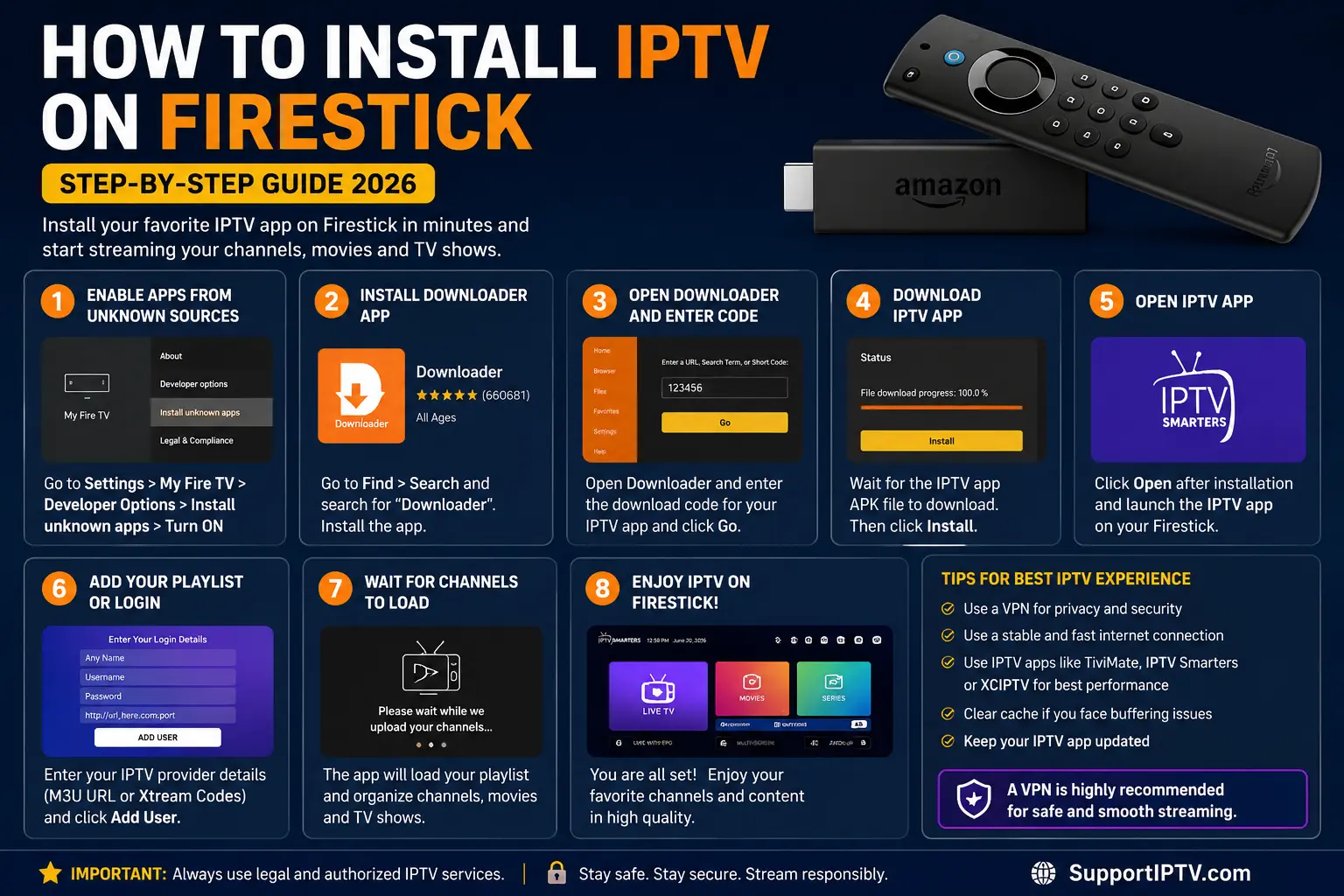
After any update, restart the Firestick so the changes take full effect. If you’re still setting things up, our guide on how to install IPTV on a Firestick covers a clean installation from scratch.
Fix 7: Rule Out Your Provider
Finally, if you’ve worked through everything above and you still get IPTV buffering on Firestick, run the same diagnostic test from the start of this guide.
Open YouTube or Netflix on the same Firestick and watch something in HD or 4K. If those apps play perfectly but your IPTV channels still buffer, the problem is not your Firestick or your internet — it’s the provider.
Then narrow it further within the IPTV app:
- Does buffering hit every channel, or just specific ones?
- Is it worse at peak evening hours than in the morning?
If only some channels buffer, or it’s clearly tied to peak times, the provider’s servers are overloaded or under-resourced. The honest fix here isn’t a setting — it’s choosing a more reliable provider. Our guide on how to choose an IPTV service explains what separates a stable provider from a flaky one, and you can always test a new service on a short trial before committing.
For a wider view of every IPTV issue beyond buffering, our IPTV troubleshooting hub links to fixes for freezing, login errors, missing guides, and more.
Advanced Fixes for Stubborn IPTV Buffering on Firestick
If you’re the sort of person who wants to exhaust every option for IPTV buffering on Firestick, these three advanced fixes deliver real results.
Use a Wired Ethernet Connection (Again, It’s That Good)
It’s worth repeating: an ethernet adapter is the closest thing to a guaranteed fix when Wi-Fi is the culprit. Wired connections don’t suffer interference, don’t degrade with distance, and don’t fight with your neighbours’ networks. If buffering is ruining your evenings, this small purchase is the highest-impact thing you can do.
Set a Static DNS
Changing your Firestick’s DNS to a fast public DNS such as Google DNS (8.8.8.8 / 8.8.4.4) or Cloudflare (1.1.1.1) can speed up how quickly streams resolve and connect. It’s a minor gain for most people, but on some networks it noticeably reduces stutter at the start of playback. You’ll usually set this at the router level for it to apply to the Firestick.
Factory Reset as a Last Resort
If your Firestick has become slow and unstable across the board — not just in one app — a factory reset gives it a clean start. Back up your IPTV login details first, then go to Settings → My Fire TV → Reset to Factory Defaults. Reinstall only the apps you actually use. A fresh Fire OS install often runs dramatically smoother than one that’s been cluttered for years.
Common Mistakes to Avoid
Even experienced users trip over these. Avoid them, and you’ll prevent a lot of avoidable IPTV buffering on Firestick — and save yourself plenty of frustration.
- Blaming the Firestick when it’s the provider. This is the number-one mistake. If YouTube is flawless and only some IPTV channels buffer, no amount of cache-clearing will help. Test before you tinker.
- Relying on 2.4GHz Wi-Fi. It’s slower and more congested. If your router has 5GHz, use it.
- Letting storage fill to the brim. A Firestick with almost no free space will always struggle. Keep 1–2GB free.
- Expecting a VPN to fix everything. A VPN only helps with throttling. Used in the wrong situation, it can add latency and make buffering slightly worse.
- Cranking the buffer size too high. A bigger buffer smooths dips, but set it absurdly high and channel changes become painfully slow. Find a balance.
- Burying the stick in a hot, enclosed cabinet. Heat throttles performance. Give it air and use the HDMI extender.
- Chasing “too good to be true” providers. A service promising endless channels for a few dollars a year is exactly the kind that buffers constantly because its servers are overloaded. Reliability costs money to deliver.
Frequently Asked Questions
Why does my IPTV keep buffering on Firestick?
Your IPTV keeps buffering on Firestick most often because of a weak internet connection, low storage, a full app cache, ISP throttling, or an overloaded provider server. If only some channels buffer while others play fine, the cause is the provider rather than your device.
Does a VPN stop IPTV buffering on Firestick?
A VPN can reduce buffering if your internet provider is throttling streaming traffic, because it hides that traffic from the ISP. It will not help if the cause is slow internet, low Firestick memory, or an overloaded provider server, and a VPN does not make an unlicensed service legal.
What internet speed do I need for IPTV on Firestick?
Around 15–25 Mbps is comfortable for a single HD stream, and 25 Mbps or more is recommended per 4K stream. A stable connection matters more than peak speed, so a wired ethernet adapter or 5GHz Wi-Fi usually beats a faster but congested 2.4GHz connection.
How do I clear the cache on my Firestick?
Go to Settings, then Applications, then Manage Installed Applications, select your IPTV app, and choose Clear Cache. Doing this regularly stops a bloated cache from causing buffering and crashes, and it does not delete your login or playlist.
Will an ethernet adapter fix Firestick buffering?
Often, yes. A wired ethernet adapter gives the Firestick a stable, interference-free connection, which is the single most effective fix when Wi-Fi is the cause of buffering. It is especially helpful for 4K streams and homes with congested wireless networks.
Why does IPTV buffer only at night on my Firestick?
Evening buffering is usually caused by network congestion or provider servers being overloaded at peak viewing hours. Test the same channels in the morning; if they are smooth then but buffer at night, the bottleneck is shared bandwidth or the provider, not your Firestick.
Is it my Firestick or my IPTV provider causing the buffering?
If every channel and app struggles, the cause is usually your Firestick or internet. If only certain IPTV channels buffer while local apps like YouTube play perfectly, the problem is on the provider’s servers, and no Firestick fix will solve it.
Does a Firestick 4K buffer less than a basic Firestick?
A Firestick 4K and 4K Max have faster processors, more memory, and better Wi-Fi, so they handle IPTV more smoothly than the basic stick, especially with large playlists. The connection still matters most, but the better hardware reduces device-side buffering.
Conclusion
Learning how to fix IPTV buffering on Firestick really comes down to a simple order of operations: secure a stable connection first, give the Firestick room to breathe with free storage and a clean cache, tune your app’s buffer and decoder, and only then reach for advanced steps like a VPN, an ethernet adapter, or a factory reset.
Above all, run the one test that saves the most time — check whether the problem is your device or your provider. If mainstream apps stream perfectly and only your IPTV channels stutter, the most effective fix isn’t on your Firestick at all; it’s switching to a provider whose servers can actually keep up.
Work through the steps in order, and in the vast majority of cases you’ll be back to smooth, uninterrupted streaming within a few minutes.
Still stuck after trying everything here? Reach out and we’ll help you pin down the exact cause.
FAQ Schema (JSON-LD)
Paste the block below into a Custom HTML block in WordPress, or let the Rank Math FAQ block generate it from the questions above. Do not include both, or you’ll duplicate the schema.
{
  "@context": "https://schema.org",
  "@type": "FAQPage",
  "mainEntity": [
    {
      "@type": "Question",
      "name": "Why does my IPTV keep buffering on Firestick?",
      "acceptedAnswer": {
        "@type": "Answer",
        "text": "IPTV usually buffers on a Firestick because of a weak or congested internet connection, a Firestick low on free storage, an app cache that needs clearing, ISP throttling, or an overloaded provider server. If only some channels buffer while others play fine, the cause is the provider rather than your device."
      }
    },
    {
      "@type": "Question",
      "name": "Does a VPN stop IPTV buffering on Firestick?",
      "acceptedAnswer": {
        "@type": "Answer",
        "text": "A VPN can reduce buffering if your internet provider is throttling streaming traffic, because it hides that traffic from the ISP. It will not help if the cause is slow internet, low Firestick memory, or an overloaded provider server, and a VPN does not make an unlicensed service legal."
      }
    },
    {
      "@type": "Question",
      "name": "What internet speed do I need for IPTV on Firestick?",
      "acceptedAnswer": {
        "@type": "Answer",
        "text": "Around 15-25 Mbps is comfortable for a single HD stream, and 25 Mbps or more is recommended per 4K stream. A stable connection matters more than peak speed, so a wired ethernet adapter or 5GHz Wi-Fi usually beats a faster but congested 2.4GHz connection."
      }
    },
    {
      "@type": "Question",
      "name": "How do I clear the cache on my Firestick?",
      "acceptedAnswer": {
        "@type": "Answer",
        "text": "Go to Settings, then Applications, then Manage Installed Applications, select your IPTV app, and choose Clear Cache. Doing this regularly stops a bloated cache from causing buffering and crashes, and it does not delete your login or playlist."
      }
    },
    {
      "@type": "Question",
      "name": "Will an ethernet adapter fix Firestick buffering?",
      "acceptedAnswer": {
        "@type": "Answer",
        "text": "Often, yes. A wired ethernet adapter gives the Firestick a stable, interference-free connection, which is the single most effective fix when Wi-Fi is the cause of buffering. It is especially helpful for 4K streams and homes with congested wireless networks."
      }
    },
    {
      "@type": "Question",
      "name": "Why does IPTV buffer only at night on my Firestick?",
      "acceptedAnswer": {
        "@type": "Answer",
        "text": "Evening buffering is usually caused by network congestion or provider servers being overloaded at peak viewing hours. Test the same channels in the morning; if they are smooth then but buffer at night, the bottleneck is shared bandwidth or the provider, not your Firestick."
      }
    },
    {
      "@type": "Question",
      "name": "Is it my Firestick or my IPTV provider causing the buffering?",
      "acceptedAnswer": {
        "@type": "Answer",
        "text": "If every channel and app struggles, the cause is usually your Firestick or internet. If only certain IPTV channels buffer while local apps like YouTube play perfectly, the problem is on the provider's servers, and no Firestick fix will solve it."
      }
    },
    {
      "@type": "Question",
      "name": "Does a Firestick 4K buffer less than a basic Firestick?",
      "acceptedAnswer": {
        "@type": "Answer",
        "text": "A Firestick 4K and 4K Max have faster processors, more memory, and better Wi-Fi, so they handle IPTV more smoothly than the basic stick, especially with large playlists. The connection still matters most, but the better hardware reduces device-side buffering."
      }
    }
  ]
}